▶ Mod Setup
Mod Manager
The first recommended action to take while modding BRC is to install the r2modman mod manager. While a mod manager is not required for modding your game, it will provide you with the following benefits:
- Direct mod installation
- Mod profiles to easily swap between practice sessions and runs
- Easily see if you are using the latest version of a mod
Installation
You can follow the in-depth installation guide on the r2modman thunderstore page.
Profile Setup
When you first run the r2modman executable your screen should look something like this:
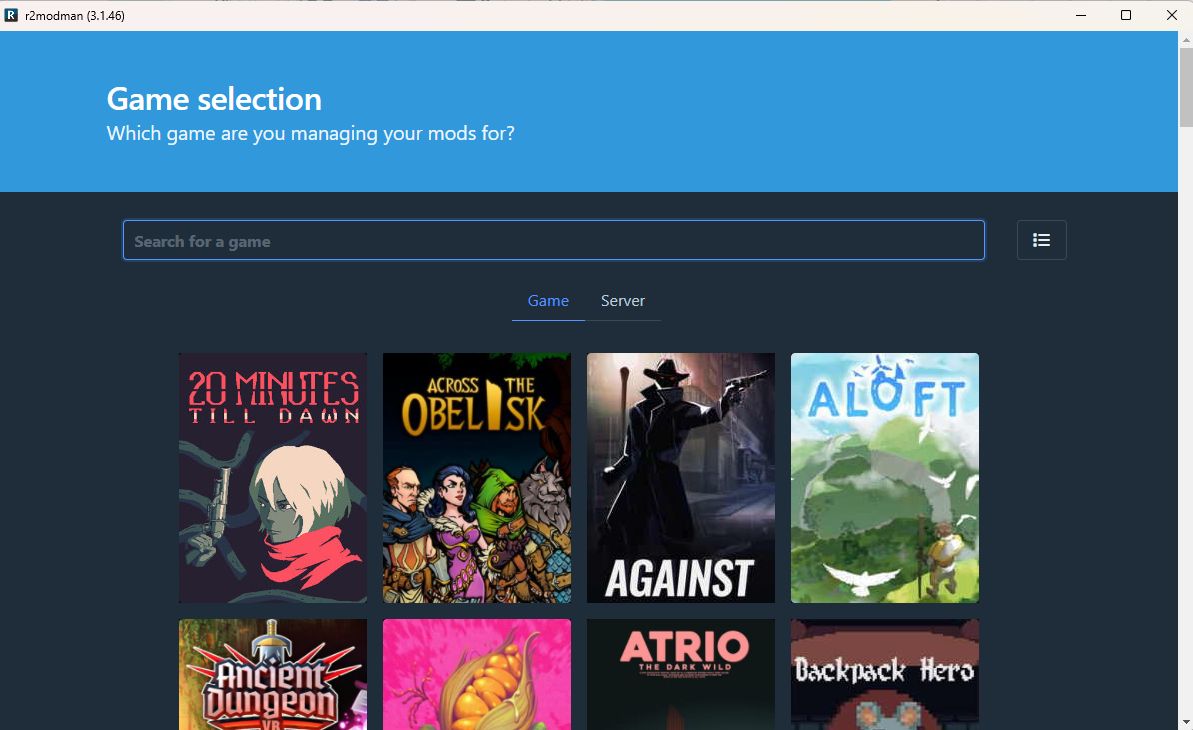
From here click in the Search for a game bar and type "Bomb Rush Cyberfunk". From there you should be able to see the listing for BRC. Hover your mouse over the icon, click the star in the top right corner so you can easily find the game later, and click on the Select game button.
Now you should be here:
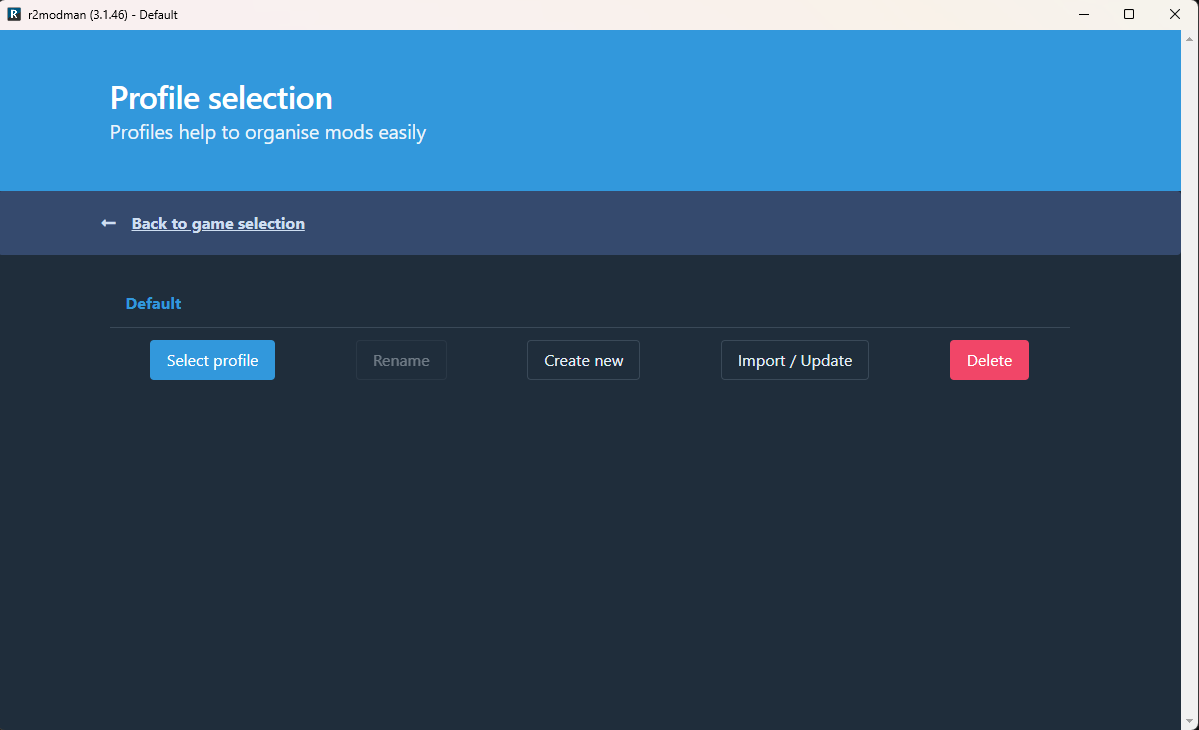
This menu is where you can select your mod profiles. Each profile can have its own set of mods installed saving you the hassle of swapping mods in and out between practice and running sessions. As such, it is suggested to make one additional profile from the default so you can have your practice mods on one and the legal speedrun mods on another. Simply click the Create new button and name the profile whatever you want.
BepInExPack
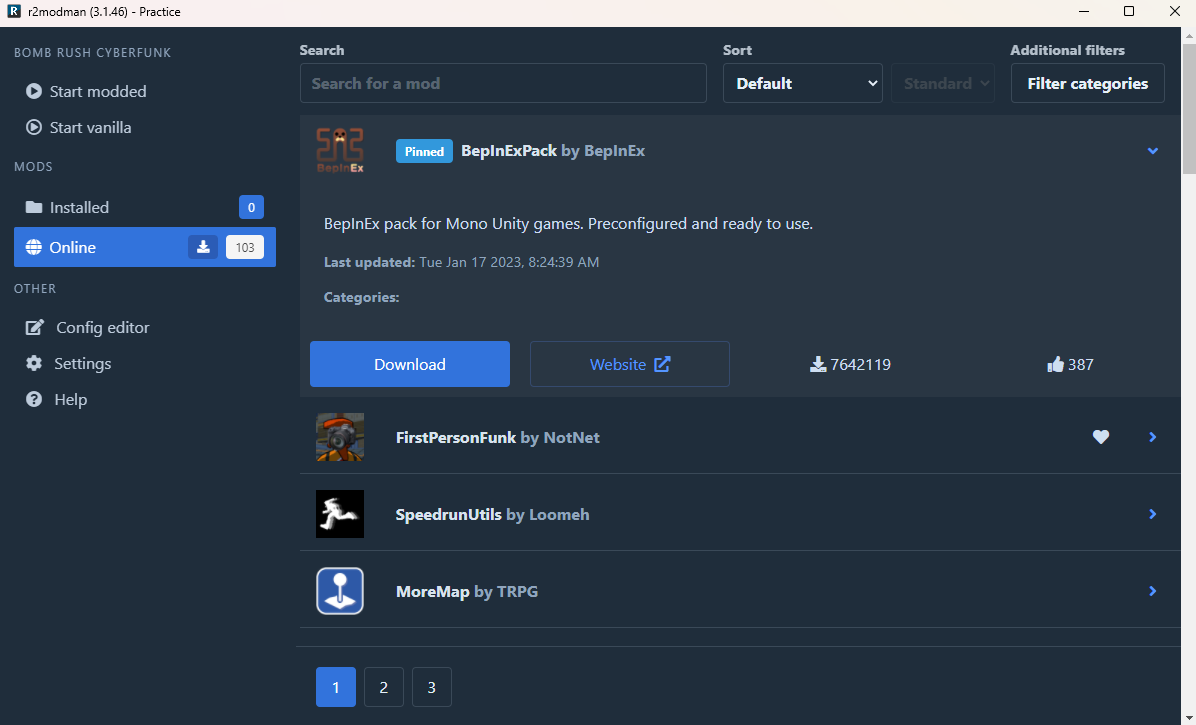
Every mod on this wiki is dependant on this mod. You will need to install this mod in every profile you use for BRC. To do this, click on the profile you would like to install it under, and click the Select profile button. Then click on the Online tab under MODS. From here you should see BepInExPack pinned at the top of the list. Select it, then click the Download button. Make sure you follow this process for each profile you plan to use. You can select other profiles by going to Settings -> Profile -> Change Profile.
Modding to Run
Okay, it's almost time to start running! However before you start it's important to understand the rules for valid speedruns that pertain to mods:
- Third party tools to rebind controls are allowed for PC runs, given that each button only has one applicable action (no macros to automate a set of actions)
- Graffiti texture and name swap modifications are allowed for runs, but may lead to higher scrutiny during verification. Custom graffiti may be rejected up to verifier discretion. Graffiti intended to help the runner gain an advantage will cause your run to be rejected
- Character palette swap modifications are allowed for runs, but may lead to higher scrutiny during verification. Custom character palettes may be rejected up to verifier discretion. Palettes intended to help the runner gain an advantage will cause your run to be rejected
- Custom character model mods are banned in runs
- All other game modifications are banned
- You can view the full ruleset of any category on the BRC speedrun.com page
If you have any questions about how your mods will affect the eligibility of your runs, ask a moderator in the BRCSR Discord. It's much better to ask them first than to get a personal best rejected!
SpeedrunUtils
Installation:
This is the all-in-one mod that you'll need to speedrun BRC. It will automatically remove load times from your final time and allow for autosplitting with LiveSplit, allow you to limit the frame rate to 30 frames per second (making normally inconsistent tricks much easier), and automatically mash through dialogue to save your hands during unskippable cutscenes.
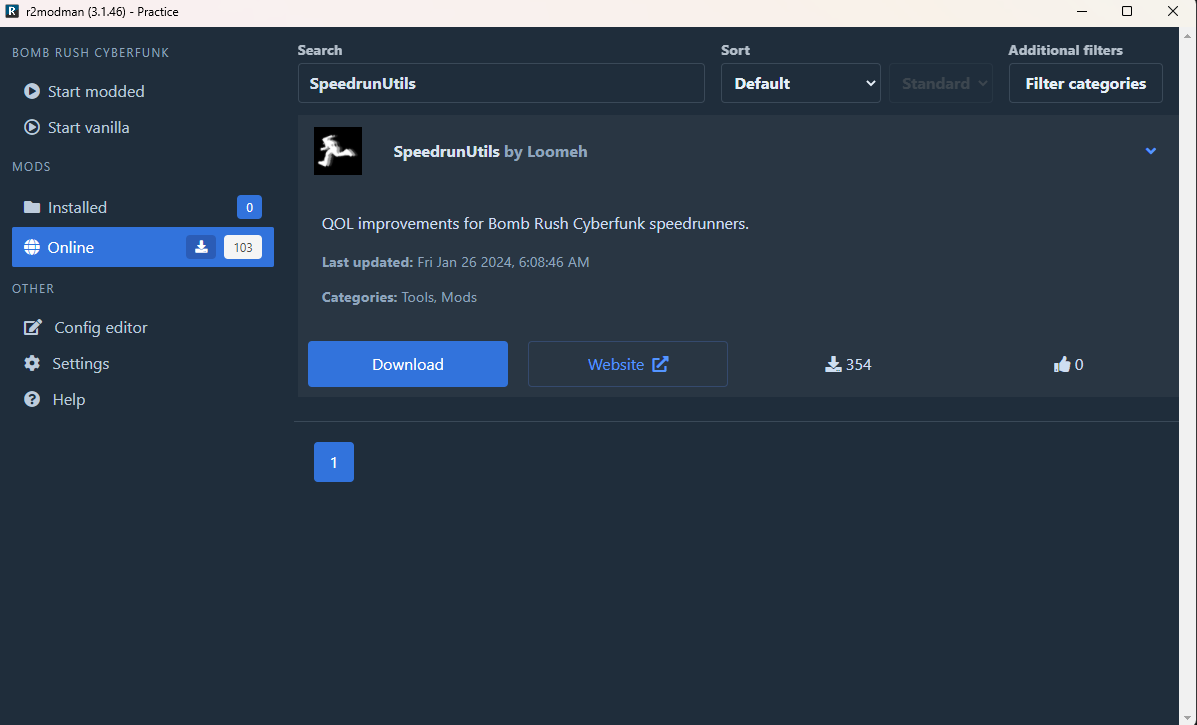
You can download the mod directly through r2modman by going to your profile of choice, going to the Online tab, and searching for "SpeedrunUtils". This is the recommended method, as you will easily be able to update the mod later should a new version come out.
If you prefer to download it manually, you can do so from Loomeh's GitHub.
IMPORTANT: The autosplitting and load removing features in SpeedrunUtils require the LiveSplit Server plugin to be installed.
- Download the LiveSplit Server Component
- Extract its contents into your LiveSplit Components folder
- Then add the LiveSplit Server component to your LiveSplit layout by going to Edit Layout -> Add -> Control -> LiveSplit Server.
- Activate the server by right click LiveSplit -> Control -> Start Server.
The in-game SpeedrunUtils menu should say "Connected to LiveSplit" in bright green text if you've set this up correctly.
Configuration:
Once you have both BepInExPack and Speedrunutils installed, click the Start modded button in the top left corner of the profile window. Doing so will create the config files for SpeedrunUtils. Once the game starts, you can close it then navigate to the Config Editor tab in the profile window. You may click on a config file and click the Edit Config button to edit the files directly in the profile window. The following are the namess of files and their uses:
- FPS: Allows you to set the default frame rate cap of the game
- Keys: Allows you to change the keybinds for FPS limit, FPS uncap, and auto mash toggles
- Settings: Allows you to adjust the size and position of the FPS display, enable/disable automash on startup, and unlock fps during loading screens
- Splits: Allows you to set what in-game events do/do not auto split. It is set to the any% splits by default. (Note, you can configure splits in-game with the SpeedrunUtils menu, editing this file directly is unnecessary.)
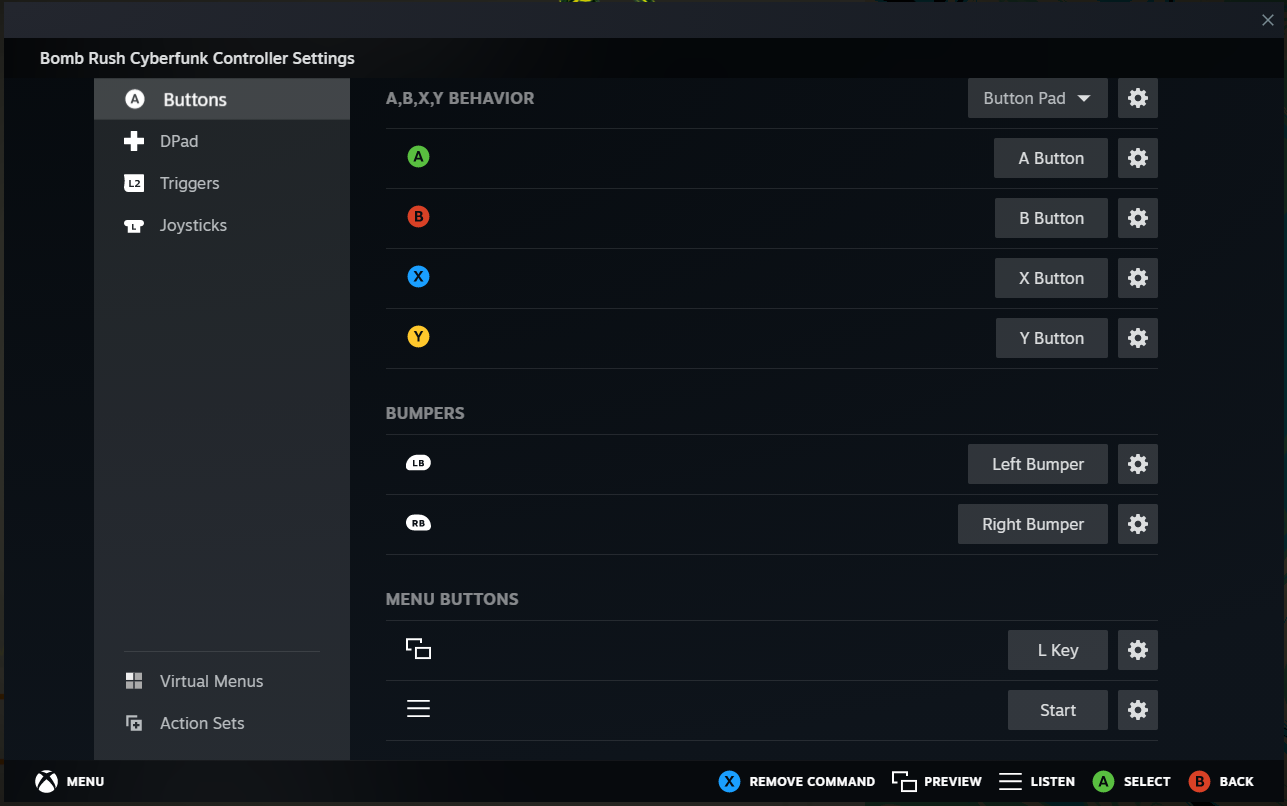
Unfortunately for controller players you cannot bind controller buttons directly for SpeedrunUtils commands. You can however set a single button to a keystroke using Steam Input (pictured below) or if you have the game on GoG you can use a program like JoyToKey.
Make sure the button is bound to a single keystroke. Failure to do this may invalidate your run.
That should be everything you need to start running! If you have any questions don't hesitate to ask in #technical-help in the BRCSR Discord
Modding to Practice
Mod Overview
Unfortunately, the mods BRC runners use to practice are not searchable through the mod manager. You can still however put these mods on individual profiles. There are two mods that will make your life practicing runs significantly easier:
NinjaUtils will grant you many essential practicing features including:
- Set a map position and warp to it at any point
- Enable fly and noclip
- Teleport between spawns (including dream spawns to go to dreams at any point in the game)
- Instantly fill boost
- FPS limiting and unlocking tools
SaveRemover that will stop the game from automatically saving and allow you to save manually. Press 0 to save and z to load (make sure you are not paused when you load your save).
Mod Installation
- go to your desired profile in r2modman, install BepInExPack, and hit the
Start moddedbutton in the top left corner to create the required folders - get both of the mods together from this NinjaMods Google Drive
- in the settings tab in your r2modman profile window, click on
Settings, then click on theBrowse profile folderto open the profile file folder - Navigate to
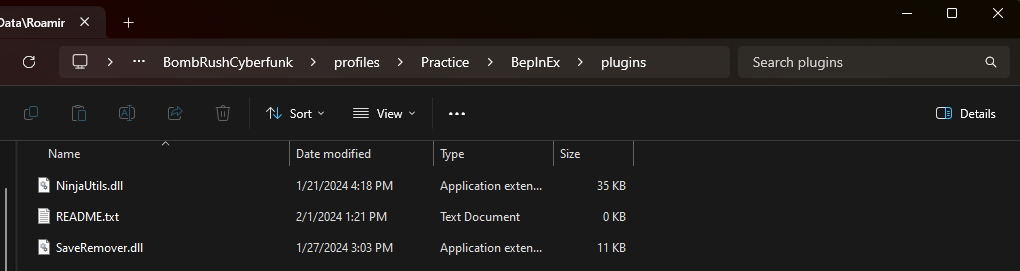
BepInEx->pluginsand extract the contents of NinjaMods.zip into the plugins folder. Your folder should look something like this:
Now if you press the Start modded button in your r2modman profile window the game should launch with both mods. Happy running!